

Desktop coding agentALPHA
One agent codes.A hive ships.
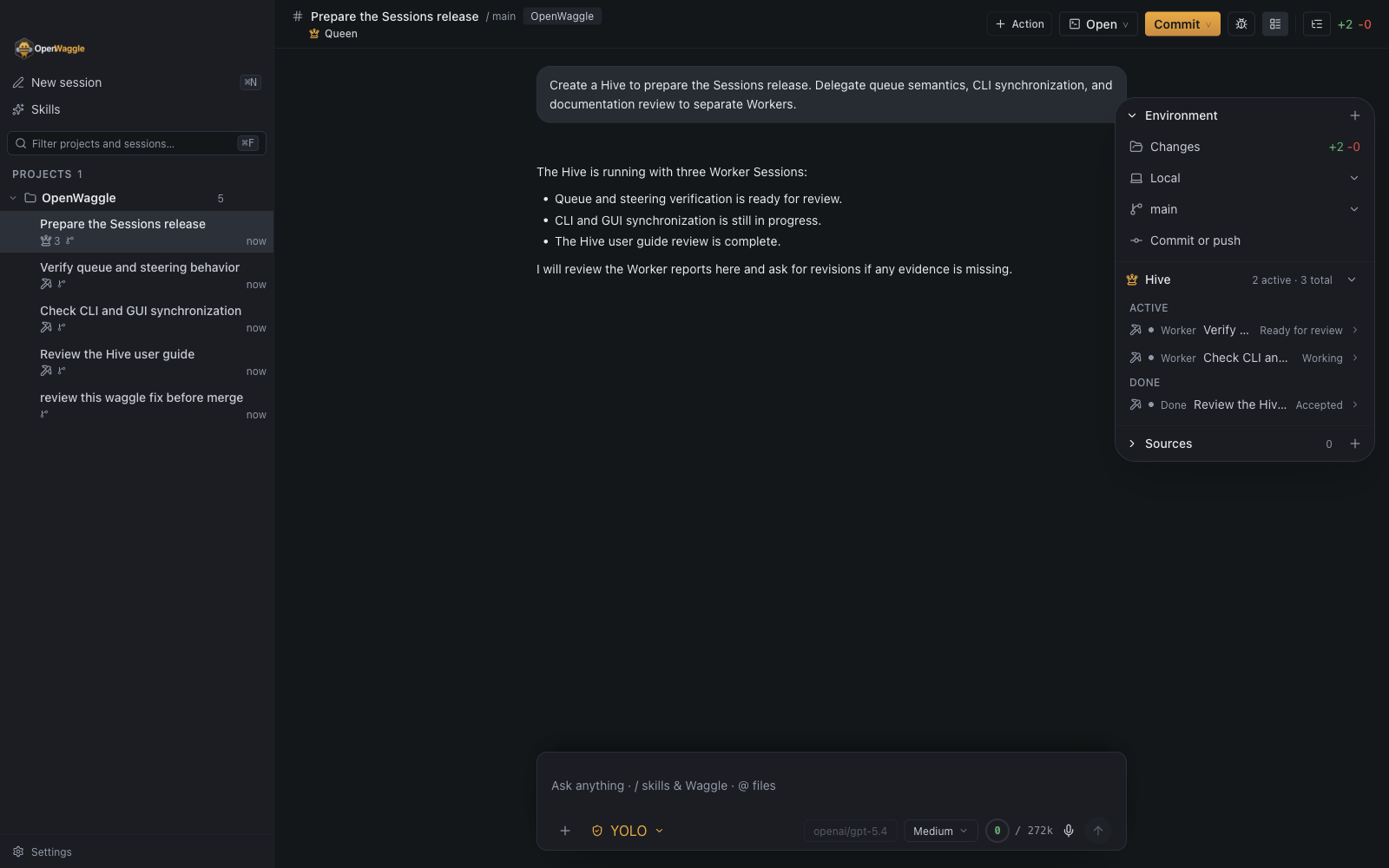
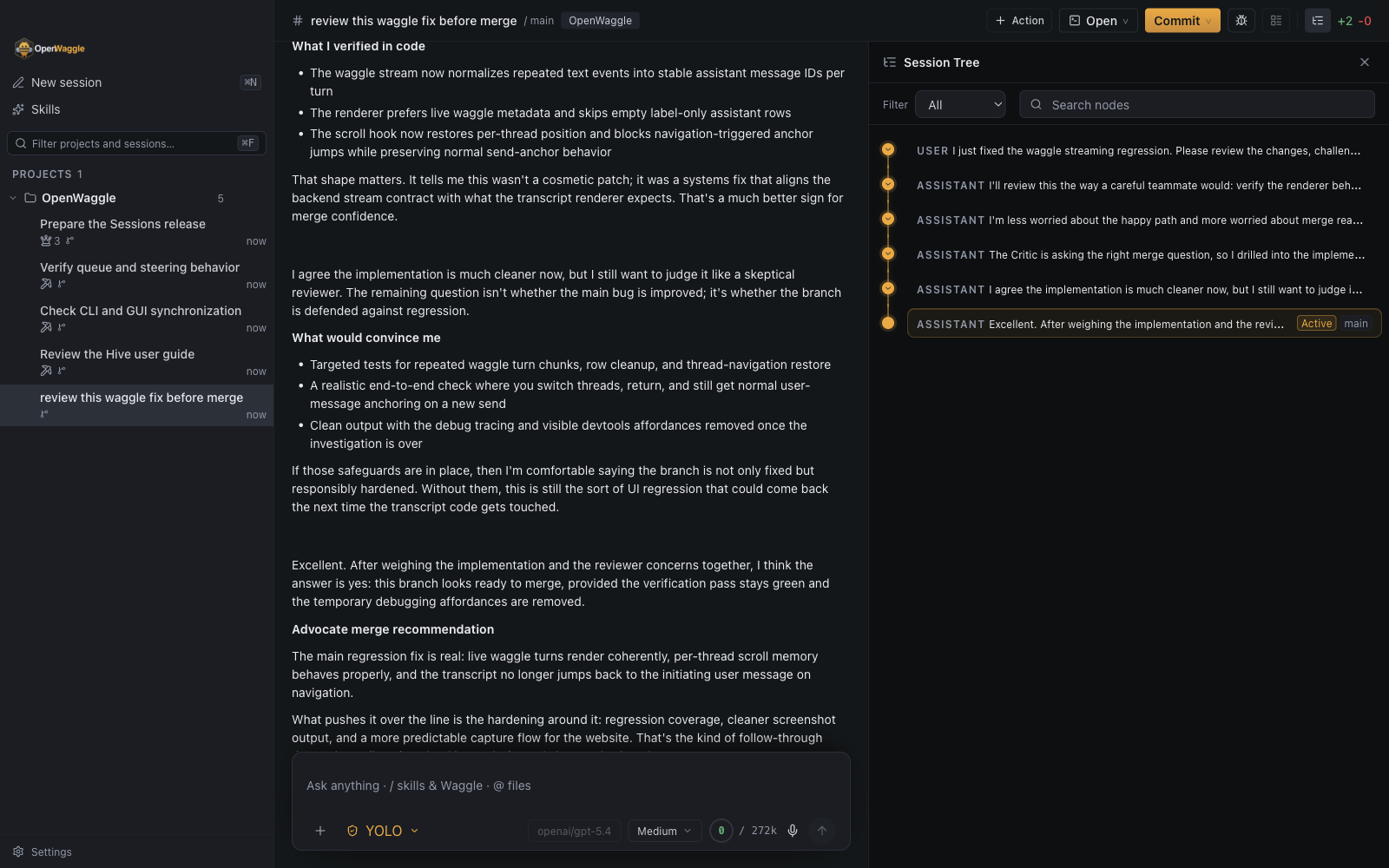
Pair two agents in a Waggle to pick apart each other's work, or hand the job to a Hive of Workers that keeps going after you move on. Missing something? Ask OpenWaggle to build it.
Free for macOS, Windows, and Linux · Source on GitHub
Make it yours
The agent can extend the app it runs in.
OpenWaggle can extend itself. Describe the panel, command, or tool you want and the agent writes an extension for it. You see every file and permission before anything is installed.
Extensions add screens
An extension can add a side panel, a settings page, a dialog, a status widget, or its own card in the transcript. It can also give the agent new tools.
Use any UI stack
Each screen an extension adds is a module that exports one mount function. Write it in React, Vue, Svelte, or plain DOM, and OpenWaggle loads it into the app.
Nothing installs without you
The agent proposes a package. OpenWaggle writes it only after you approve that exact set of files, and asks a second time before installing anything globally.
Commit it with the project
Project extensions live in .openwaggle/extensions, so they travel with the repo. Each person still reviews and enables them on their own machine.
Beyond the conversation
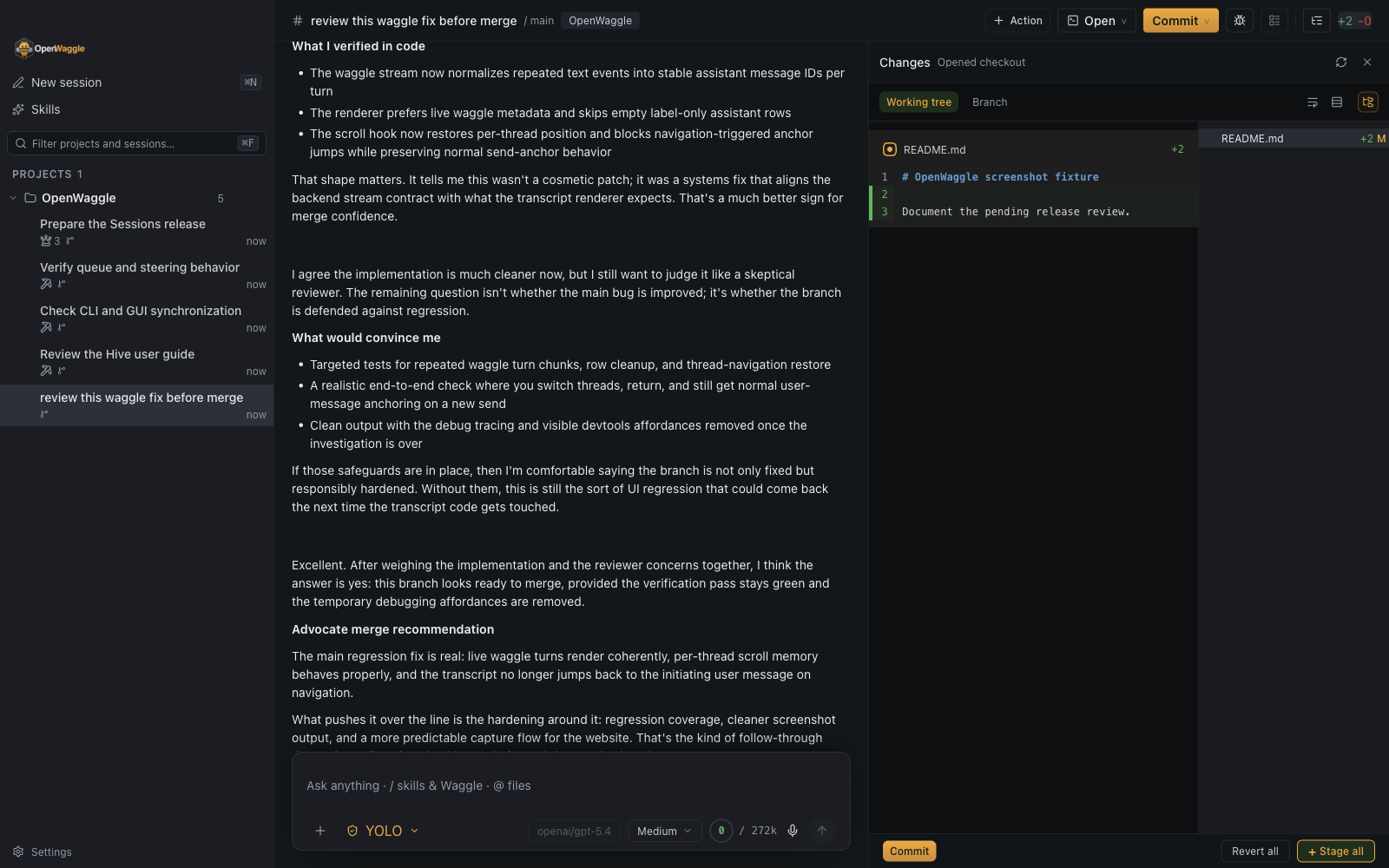
Review code changes
Read the diff, comment on individual lines, or send a batch of feedback to the agent. Stage and commit changes in the app.
Git and diff reviewShow the agent what you mean
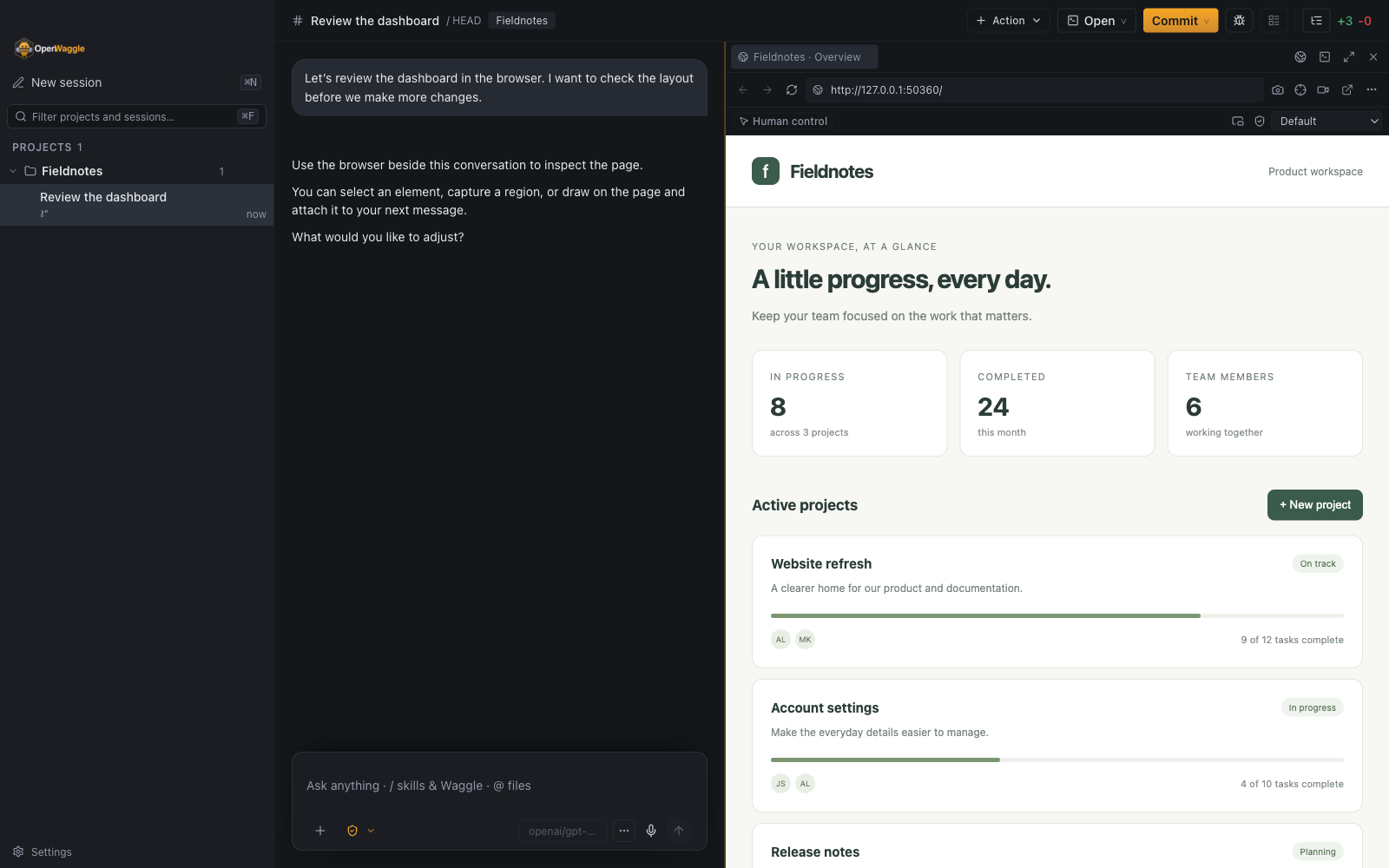
Use the built-in browser to check your app. Attach an element, a region, or a drawing to your next message.
Browser previewTry a different approach
Branch a conversation from an earlier message without deleting the original thread. Conversation branches are separate from Git branches.
Conversation branchesAdd your own tools and instructions
Give the agent project instructions, load reusable skills, and connect external tools through MCP.
Project instructionsGet started
Connect a provider
Choose your provider and enable a model in Settings. Use an API key or sign in through the browser where supported. Provider usage costs and limits still apply.
Provider setupOpen your project
Open a local project folder and ask a question about the code. The walkthrough takes you through requesting a small change, checking approvals, and reviewing the diff.
Follow the walkthroughWhen you want more than one agent
Optional ways to share a task across agents.
Waggle
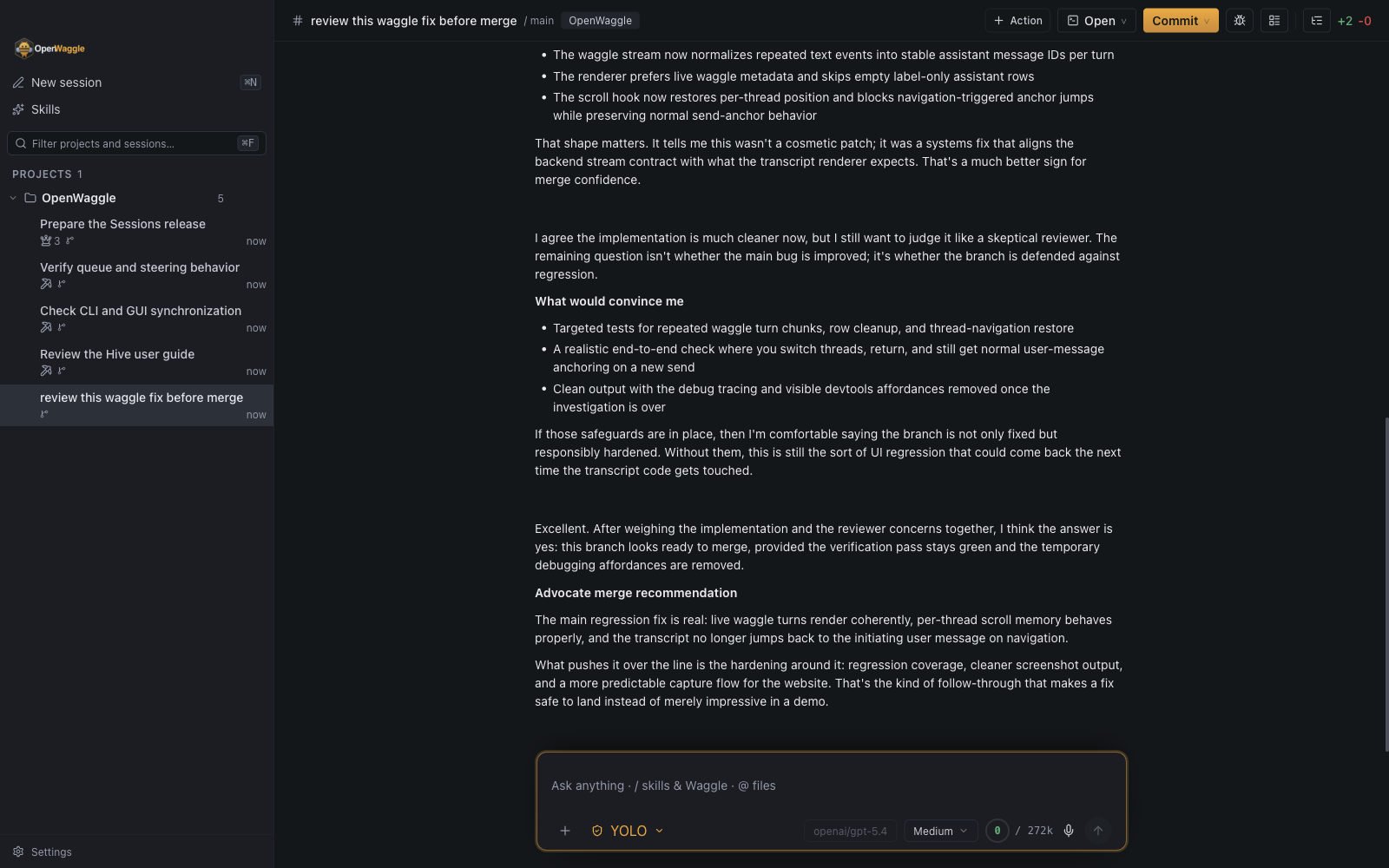
Pair two agents on the same task. They take turns in one conversation, using the model and role you choose for each.
Waggle guideHives
Delegate work to separate agent sessions. Each worker has its own conversation, and you can open it directly to follow the work.
Hives and sessionsA few things to know
Does everything stay on my computer?
OpenWaggle stores session data locally. Requests to hosted AI models send messages and code outside your computer. Connected tools can send data too. See privacy and data for details.
Do I need to run multiple agents?
No. You can work with one agent in a normal conversation. Waggle and Hives are optional.
Can I use my existing provider account?
Authentication options depend on the provider. Some support signing in through your browser; others require an API key. Check provider setup for the available connections.