
Session tree and branches
Return to an earlier message, try another approach, or copy a conversation into a new session.
Use the Session tree when you want to return to an earlier point in a conversation and try a different approach. A conversation branch keeps the original path available while you continue along another.
Conversation branches are not Git branches. Changing the selected conversation path does not undo file edits or switch your repository’s Git branch. Use Git controls to manage files and commits.
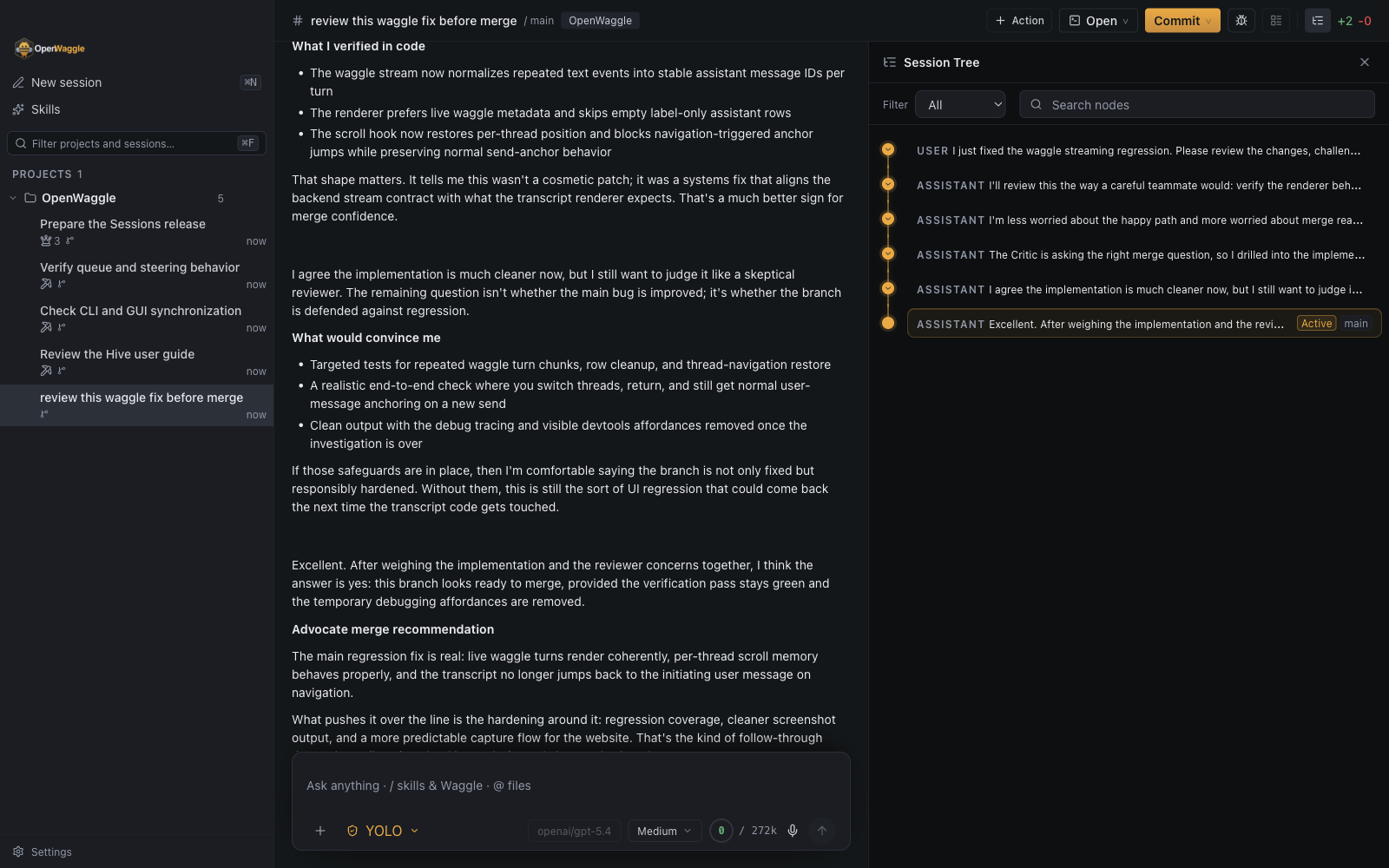
Opening the Session tree
Click Session tree on the panel rail or press Cmd+Shift+Y on macOS or Ctrl+Shift+Y on Windows and Linux. You can also press Cmd+K / Ctrl+K and choose Session Tree under Panels.
The tree opens in the right panel, which shows one panel at a time, so opening it replaces Changes or whatever else was showing.
To try a different approach:
- Find the earlier message where you want to continue.
- Select its row. The conversation now shows the path up to that point.
- If prompted, decide whether to bring a summary of the later work with you.
- Check the draft in the message box, write or edit your next instruction, and send it.
For example, return to the message before a proposed refactor and ask the agent to compare a smaller change instead. Check your working tree first: files changed by the earlier approach are still on disk.
What the tree shows
Each row is a point in the saved conversation history, such as a message or tool event. Dots and connecting lines show how those points relate.
- The active path is the conversation currently shown in chat.
- Branch badges identify the latest point of a saved branch.
- A draft marks an earlier point you selected but have not yet continued from.
- Archived branches remain in the full tree even when hidden from normal sidebar navigation.
The left sidebar shows sessions and saved conversation branches, not every history row. A list-tree icon with a count indicates that a session has more than one branch.
Filters and search
Use the filter menu to reduce the detail shown:
| Filter | What it shows |
|---|---|
| Default | Messages and tool results, without bookkeeping entries such as model changes. |
| No tools | The default view without tool-result entries. |
| User only | Your messages. |
| Labeled | Label entries in the conversation history. |
| All | Every history entry, including tool and structural detail. |
OpenWaggle remembers the selected filter in your Pi settings. A project can override that default. Search checks the entries included by that filter, using message content, metadata, and branch identifiers. Matches beneath collapsed rows appear temporarily without changing which rows you had expanded. Choose All if a narrower filter hides the entry you need.
Navigation behavior
Selecting the latest point of a saved branch returns you to that branch and clears any draft branch selection.
Selecting an earlier point prepares a draft branch. It does not immediately add a new saved branch. Selecting a user message can also put its text in the message box for you to retry or edit. The new branch is saved when you send, or earlier if you explicitly choose a branch-summary action that creates it.
To copy history into a separate session, open the command palette and use:
- Fork to new session to choose a previous user message and start a new session with that message ready to edit and resend.
- Clone current session to copy the selected conversation path into a new session with a blank message box.
Both leave the original conversation intact. The new session is named after the original, marked (fork) or (copy); you can rename it. They copy conversation history, not a backup of your working files.
For saved links, the app can retain branch, node, and panel=session-tree in the route. An unsent draft branch is temporary and is not restored from a copied URL.
Branch summary prompt
Returning to an earlier message leaves later messages outside your selected path. The summary prompt asks whether to bring some of that later context along:
- No summary continues without a summary of the later work.
- Summarize asks the model to summarize that work.
- Custom lets you write summary instructions in the message box and press Send.
- Cancel returns to your previous selection.
This changes the context the agent sees, not the files on disk. See Context management for the difference between branch summaries and compaction.
For advanced configuration, Pi’s branchSummary.skipPrompt setting skips this prompt. The tree filter is stored as treeFilterMode in Pi settings; a project’s Pi configuration can override it.
Branch lifecycle
You can rename saved branch rows inline in the sidebar. Archive a non-main branch to hide it from normal navigation, then restore it through Settings when needed. Archived branches remain visible in the full tree.
Archiving the main conversation branch archives the entire session. Archiving does not ask for confirmation, because it can be undone from Settings > Archived items. If you archive the session you have open, OpenWaggle opens the next session in the same sidebar section, or the empty home screen when none is left. A session archived elsewhere while you have it open, for example by Hive cleanup, stays on screen with a notice and a Restore action. Deleting individual conversation branches is not available.
Keyboard navigation
When focus is in the Session tree:
| Action | Shortcut |
|---|---|
| Move focus | ArrowUp / ArrowDown |
| Expand a row or move to its first child | ArrowRight |
| Collapse a row or move to its parent | ArrowLeft |
| Select the focused row | Enter |
| Close the tree | Escape |