Sessions from the Pi CLI
Continue a session you started with the pi command, and what OpenWaggle does when its file moves or disappears.
If you also use the pi command, the sessions you start with it show up in OpenWaggle by themselves. There is nothing to import. Use this when you start something in a terminal and want to carry on in the app, or the other way round.
Find a pi session
A pi session appears under a project when you started it in that project’s folder or in any folder inside it, for example packages/api. It shows up a few seconds after OpenWaggle opens, or a few seconds after you create the session.
Sessions from folders that aren’t an OpenWaggle project stay hidden. Add the folder as a project and its pi sessions appear.
It is the same session, not a copy. Opening it to read never changes its file. A session you forked with /fork in Pi shows up as its own session, next to the one it came from.
The title is the name you gave the session with /name in Pi. Without one, OpenWaggle titles it the way it titles its own sessions: from its first message, then with the Title model when that message is less than a day old. Older sessions keep their first message as the title. A later /name changes the title too, unless you renamed the session in OpenWaggle. Then your title stays.
Continue a pi session
Open the session and send a message to carry on. Later, pi --resume in the terminal picks up the same history, including what you added in OpenWaggle. If you continue in the terminal while OpenWaggle is open, OpenWaggle reads the new messages the next time you open the session or send a message. Don’t write to the same session from both at the same moment, because neither one waits for the other.
The agent works in the folder you started the pi session in, with the model and thinking level the session last used, the same as pi --resume. If the session never changed its thinking level, it uses Pi’s default thinking level. A .pi/settings.json in the folder you started the session in wins over your global Pi settings, as it does for pi. A model with fewer levels gets the nearest one it has.
When you send a message in a session that pi used last, OpenWaggle first asks where to continue:
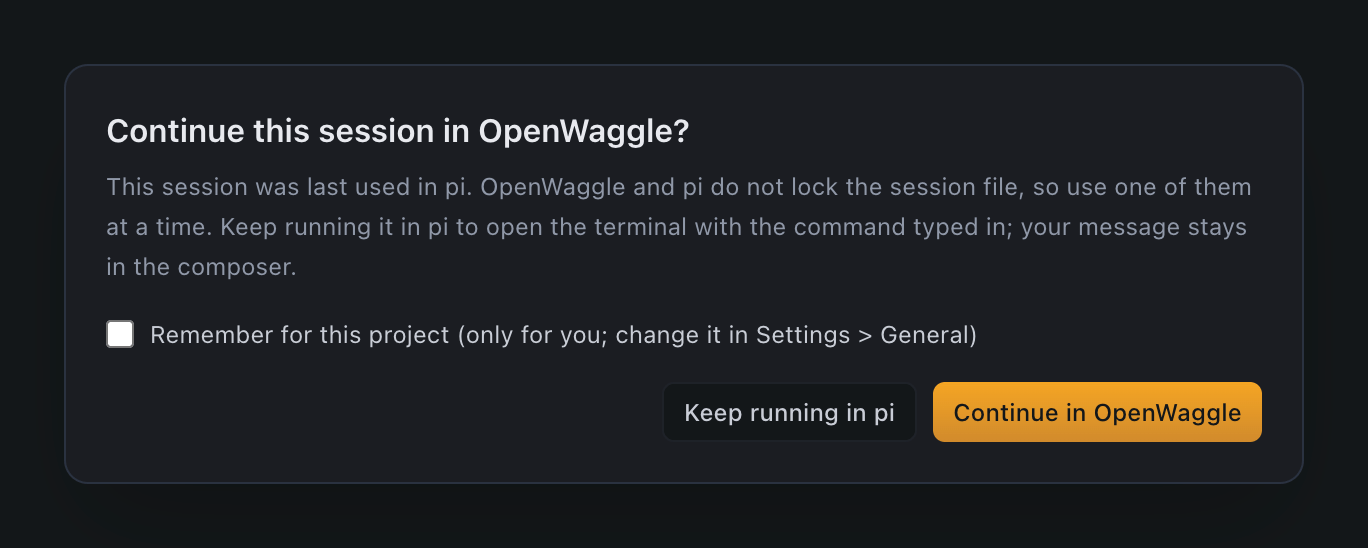
- Continue in OpenWaggle sends the message.
- Keep running in pi opens the session’s terminal in the folder the session ran in, with
pi --session <file>typed in for you to run, and keeps your message in the composer.
Tick Remember for this project to skip the question in that project next time. OpenWaggle saves the choice in your own settings, not in the project, and you can change it for each project in Settings > General > Pi sessions. It never holds back messages from agents or from the openwaggle command.
Keep sessions in another folder
If you keep Pi’s sessions somewhere else with PI_CODING_AGENT_SESSION_DIR or the sessionDir setting, OpenWaggle looks there too. It also saves its own new sessions there, so pi --resume finds them. See Pi’s environment variables.
Remove a session or project
Deleting a pi session in OpenWaggle removes it from OpenWaggle only. The Pi session file stays, so pi --resume still has it, and OpenWaggle doesn’t list it again. A session you started in OpenWaggle is deleted completely.
Removing a project also keeps the Pi files of its pi sessions. If you add the folder again later, they come back. If the folder is inside another project, that project lists them once the removal is done, since they were started inside its folder.
When a session file goes missing
What happens depends on why the file is gone.
The file was deleted. If you delete a pi session’s file outside OpenWaggle, for example from pi --resume, the session leaves OpenWaggle’s sidebar too, because its history was in that file. OpenWaggle never starts a new file under that session. A session that a fork or a worker still depends on stays, read-only, and says so when you open it. Sending a message to it fails with a message that says why.
Its folder or drive is not there. If the folder that holds the file is missing, the session keeps its history and says so when you open it. That happens when the folder was renamed or is on a drive that isn’t connected, or when the file is a link to such a drive or can’t be read. Until you put the folder back, reconnect the drive or make the file readable, sending a message, forking, cloning, compacting and switching branches all fail with a message that says so. This applies to sessions you started in OpenWaggle too. OpenWaggle finds a file that comes back later.
You started the session in OpenWaggle and its file was deleted. The session says so when you open it. Your next message starts a new transcript. The agent no longer has the earlier conversation, and the session shows only what comes after. Until you send it, the session can’t be forked, cloned, compacted or switched to another branch. If OpenWaggle can’t read a folder that may hold a copy of the file, it doesn’t start a new transcript. The session names the folder, and messages to it fail until you make that folder readable again.