
Hives and sessions
Split a task across independent worker sessions, choose their workspaces, and review the results.
Use a Hive when a task has parts that can be assigned to independent agents. For example, one agent can investigate a bug while another reviews the related tests. This is optional; a normal conversation is enough for many tasks.
A Hive is a family of sessions. The session that starts it is the Queen; its descendants are Workers. These names describe lineage, not blanket authority. A Worker can create more Workers when permitted, and the Queen does not automatically gain permission to control every session.
Each Worker is a saved, independent session with its own transcript, active run, message queue, model settings, and workspace. It can continue after the Queen’s current run ends. Workers appear in the normal sidebar. The header shows the Hive role and optional agent definition.
For two agents taking sequential turns in the same conversation, use Waggle Mode instead.
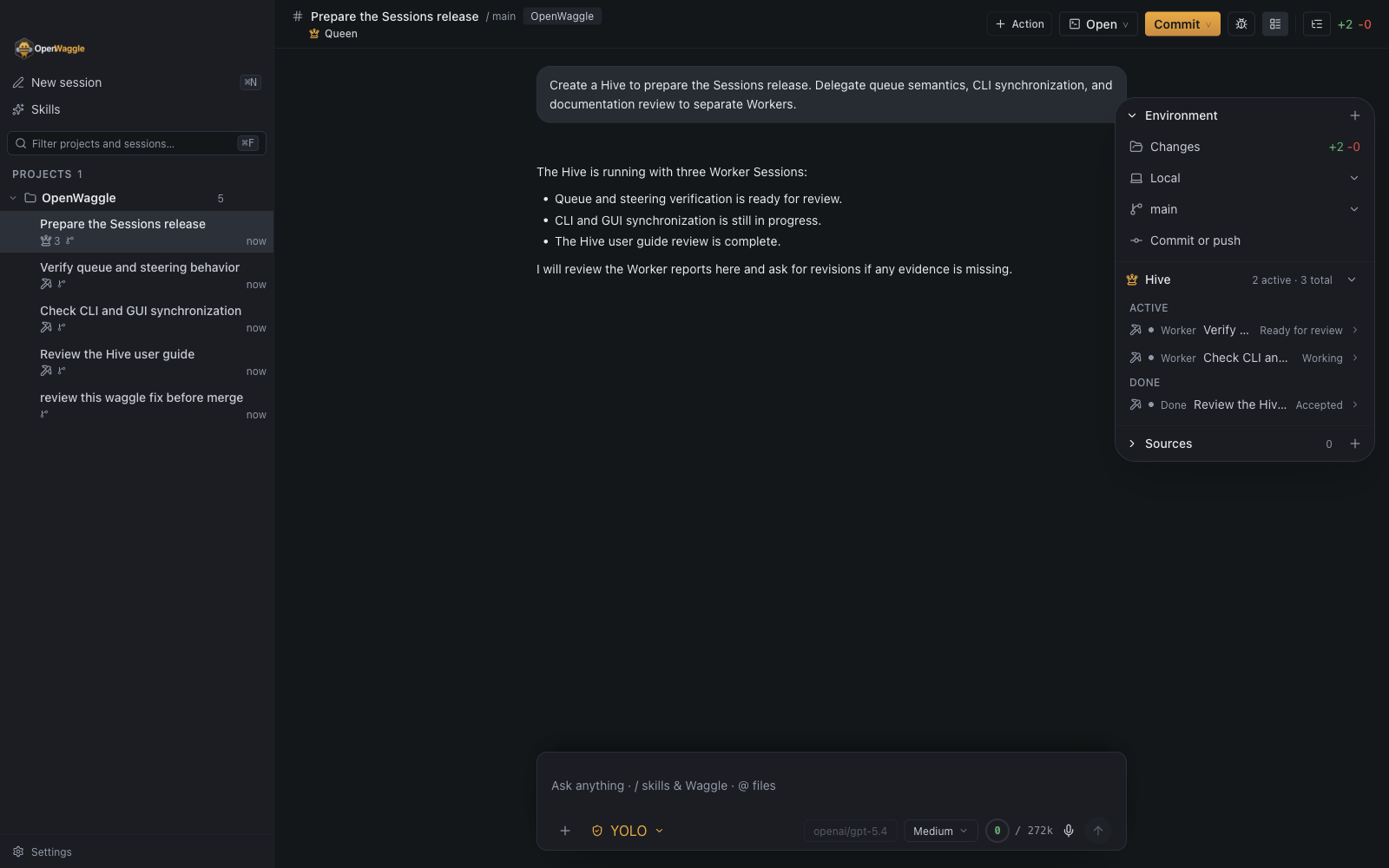
The Queen and all three Workers remain ordinary Sessions in the left sidebar. The Session Summary’s Hive section shows Worker state and provides quick navigation.
Try a Hive
Start in a normal Session and ask the agent to split a concrete job:
Create two Workers to investigate this repository's login flow.
Have one trace the implementation and one review the tests for missing cases.
Do not edit files or commit anything. Give each Worker the relevant paths.
Review their findings here and identify which claims are supported by code or tests.
The current Session becomes the Queen. OpenWaggle creates each Worker as a durable Session, adds it to the normal sidebar, and keeps its Run active when you navigate elsewhere. Workers report results to their parent agent. The Queen reviews those reports and returns one combined answer in the original Session.
You can keep working in the Queen Session while Workers run. The Hive section in Session Summary shows which direct Workers are active and which have finished; it is a navigation and status view, not a separate approval queue. If a Worker needs a correction, tell the Queen what to change. The parent agent can request a revision of that Worker’s submission. You can also open any Worker Session and talk to it directly.
Click a Worker in the sidebar or the Session Summary’s Hive section to inspect its full transcript. In a Worker Session, the same section links back to its immediate parent. Collapsing the section hides these shortcuts without hiding or stopping any Session. The Summary is available even before a newly spawned Worker has sent its first message.
The Queen’s summary is a starting point for review, not a substitute for the Worker transcripts, changed files, or test results. Instructions such as “do not edit” are not access controls. Check each session’s approval settings before assigning work, and remember that concurrent Workers can make separate billable provider calls.
Workspace placement
Workers share the parent’s exact workspace by default. They can read and change the same files you and other sessions are using. For independent edits, ask for a new worktree and give each Worker a clear scope. A separate worktree isolates the checkout; it does not grant new filesystem or Git permissions.
You can also choose a specific local checkout. Launches and forks have explicit workspace choices too. OpenWaggle does not silently substitute another checkout when a worktree is missing.
A new worktree can run configured workspace preparation before the agent starts. Setup must finish successfully, or receive an explicit continue decision, before execution proceeds. If setup has failed or its previous result is uncertain, inspect Workspace preparation in Session Summary rather than repeatedly sending the task. See Project actions for preparation and managed-run controls.
Sharing a workspace makes it harder to attribute changes. OpenWaggle records advisory scope claims and conflicts, but those claims do not lock files. Review overlapping edits yourself.
Session and message actions
A run is one active execution of the agent in a session. Use a Follow-up for work that should start after it finishes; use Steer for guidance that belongs in the current run. Steer does not cancel a tool already running.
These names have precise meanings in the GUI, CLI, MCP adapter, and native sessions tool:
| Action | Meaning |
|---|---|
| Create | Create an idle independent root Session. It has no initial Run. |
| Launch | Atomically create an independent root Session and start its first Run. |
| Spawn | Atomically create and start a Worker beneath a parent, including its lineage and Delegation Contract. |
| Fork | Create a new Session from a stable point in an existing transcript. |
| Message | Adaptive convenience action: start immediately when idle, otherwise append a durable Follow-up. An idle Session whose queue is paused still starts the message; the paused Follow-ups stay queued. |
| Start | Start a new Run on an idle Session. It never queues behind an active Run. |
| Follow-up | Submit a durable, separate next Run. It remains queued while the current Run finishes; if that Run has just settled, it starts immediately as the next Run. |
| Steer | Append guidance to one exact active Run without interrupting it. It requires that Run’s identity. |
| Replace | Interrupt one exact active Run and start the supplied message as a new Run. |
| Promote | Remove one queued Follow-up and deliver it as Steering to the exact active Run. |
| Withdraw | Remove a pending Follow-up before delivery. |
| Reorder | Change pending Follow-up order against an expected queue revision. |
| Pause / Resume | Stop or restart automatic delivery of queued Follow-ups. Pausing does not interrupt a Run. A failed, interrupted, or timed-out Run pauses the queue only for Follow-ups accepted before the Run ended; one accepted after that starts at settlement. queue list reports why a paused queue paused. |
| Interrupt | Stop one exact active Run without starting another. |
| Wait | Perform one bounded observation until a Session condition is reached or the timeout expires. It uses Host events internally but does not create a persistent subscription or consume an agent Run slot. |
| Watch | Stream authorized Session Host events, with a cursor for reconnect and resynchronization. |
| Report | Deliver explicit context upstream, to the Queen, or to a named Worker without starting or steering a Run. |
| Handoff | Move a Session to another authorized Workspace binding. |
| Export | Stream or create a Markdown, JSONL, or bundle artifact from an authorized transcript scope. |
Pi’s internal steering queue is an adapter detail. The durable Follow-up queue above is the product queue: it survives renderer disconnects and host recovery, can remain pending after the active Run, and is delivered one entry at a time when resumed.
When you promote a Follow-up, its preview moves into the conversation while the Host processes it. During compaction it shows that it is waiting. Acceptance can precede delivery while a tool is still running, so the preview remains until the actual user message arrives. Switching Sessions does not discard it. If the Host refuses the promotion, the Follow-up remains in its queue.
A steered message the agent has not read yet is not lost when its Run ends first. If you stop, interrupt, or replace the Run, or it ends without reading the message, the message returns to the front of the Follow-up queue, in the order it was steered. A promoted Follow-up keeps its identity, text, attachments, and options. A message steered directly, for example by an agent or the Sessions CLI, becomes a new Follow-up from the same caller, with its text, attachments, and visualization context; like any steer it has no Waggle, thinking level, or authorization override of its own, so it runs with the Session’s settings. The queue list marks it as a returned steer with the steer’s Run and idempotency key, so the caller can find it instead of sending it again. Because returned steers can push the queue past its usual capacity, a direct steer is refused while the queue is full, and one Run holds a bounded number of them. A stopped Run pauses the queue as usual, so you can resume, steer, or dismiss it. A message the agent had already started reading stays in the transcript and is not returned. After a Host crash, OpenWaggle cannot tell which steered messages were read, so it returns none of them.
Authorization and capacity
A child inherits the parent’s execution profile by default. Any specialization can keep or reduce approval, tool, MCP, and native Session capabilities; it cannot widen them through the Sessions API. YOLO (Full access) is available only when the caller and resolved authorization ceiling already permit it.
A Session’s model and thinking level are Session settings. A Run uses them when it starts, and they can change only while no Run is starting, running, or stopping. A Session that is only waiting on its queue can change. An agent or CLI caller can set a thinking level when it creates, launches, or spawns a Session, or with a message or start that starts a Run on an idle Session. It can pass a Run authorization override on launch, spawn, or such a message or start; create starts no Run, so it takes none. The override applies only to that Run and stays within the caller’s ceiling. Neither is accepted while a Run is active, so a queued Follow-up, steer, or replacement never carries its own thinking level or access; a Follow-up runs with the Session’s settings when its turn comes.
If the access a Follow-up was queued under is revoked or no longer covers the Session, the Follow-up waits in the queue marked as needing attention. In the app, Send as me sends it under your own access instead. The queue keeps who originally queued it, and the message can no longer be edited. You can also dismiss it.
Session capabilities constrain the native sessions tool and authenticated Session Host requests. They are not an operating-system sandbox. A Worker that still has an unrestricted shell, process access, and the same desktop-user credentials can act with that user’s authority outside the native tool, including calling the CLI directly. For strong containment, remove shell/process tools from the Agent definition or run the agent in a separate OS sandbox, account, or container. Named CLI profiles are useful for attribution and least privilege only when the caller cannot also access the owner’s credentials.
Settings > Agents > Hive controls contains Agent-created Workers, Workers per parent, default 4, and Active agent runs, default 16. These control agent-created sessions, concurrent direct Workers under one parent, and the app-wide active run limit. Both limits are configurable without a fixed product maximum; high values may strain the machine or provider. A new Run at capacity receives a retryable rejection, not a queued slot. These limits count active Runs, not saved Sessions, queues, searches, exports, waits, or watchers.
Delegation lifecycle
Each spawn creates one durable Delegation Contract. The Worker submits a revision with evidence; the parent agent normally reviews it, asks for revision, or accepts it. The GUI shows state and navigation but does not make the human approve every submission. A normally completed Worker that did not submit explicitly receives a host-captured submission so its result is not lost.
Use Agent Definitions for optional reusable roles. No definition is required: the parent agent may decide the Worker approach for each assignment.
Automatic cleanup of finished Workers
When the parent agent accepts or cancels a Worker’s delegation, OpenWaggle archives that Worker on the parent’s behalf if you never interacted with it. A Worker that is still busy is archived once it becomes idle: no active run, no queued Follow-ups, and no pending question or approval request. Interacting includes sending it a message or Follow-up, steering or replacing its run, answering one of its questions or approval requests, reviewing its delegation yourself (accepting, cancelling, reopening, or asking for a revision), branching its conversation, and renaming, archiving, or restoring it, whether from the app or the CLI. Any Worker you have interacted with stays in the sidebar. A pinned Worker is not archived while it is pinned. Archiving is recorded as the parent agent’s action, and nothing is deleted.
Reading a Worker’s transcript is not interaction, but OpenWaggle leaves a Worker alone while it is open in the app, and while it has a terminal, a browser preview, or a running project service that archiving would stop. It checks again the next time a run in the Hive finishes.
Archived Workers stay listed under Archived in the Session Summary’s Hive section and in Settings > Archived items. Use the restore button beside an archived Worker in the Hive section, or Restore in Settings, to return it to the sidebar and continue the conversation. Work sent to a Worker that cleanup archived restores it in the same step, so it is back in the sidebar and out of the Hive section’s Archived list while it runs. That covers a message, Follow-up, start, steer, or replace, and reopening or asking for a revision of its delegation, whether you do it or an agent does. The restore is recorded as whoever sent the work. OpenWaggle does not archive a Worker you restored again. A Worker an agent restored stays visible until its delegation is accepted or cancelled again; after that, cleanup can archive it once more. A Worker that you or an agent archived explicitly stays archived when it gets new work, and the parent agent can restore it with unarchive.
How hosted agents coordinate
An agent running inside OpenWaggle uses its native sessions tool. It can list or search available Agent definitions, then spawn a Worker with a specific objective, an optional definition, and an explicit Workspace choice. Without a definition, the Worker is a normal agent. A spawned Worker starts with its own context: the parent must include the task and any necessary references rather than assuming the Worker can see the parent’s transcript.
After spawning, the parent can use wait for a bounded observation, read the Worker’s Session or Delegation history, and review its submitted revision. The native tool’s wait is not a permanent subscription; external CLI/MCP clients can use watch for a continuing event stream. The parent may ask for revision or accept the submission. An agent can use report to pass context to its parent, the Queen, or another Worker without starting a Run in the recipient. A user can ask a Worker to report a finding upstream; no separate reporting UI is required.
Sessions in other repositories
An agent is not limited to its own repository. A Session you started from the app can list, search, and read Sessions in any project that has a Session or Workspace in OpenWaggle, report to them, send them Follow-ups, steer, interrupt, or archive them, and launch or create a new Session in another of those projects, without sharing a Hive. A project you only opened, without sending a message, does not count yet; start a Session there first. This applies to turns you started, or that another such agent started; a turn started by a restricted CLI profile, or by a Worker’s Follow-up, stays in the Session’s own project, and a restricted profile cannot steer a turn that reaches other projects. For example:
Find the open OpenWaggle session about the release checklist and report this failing
check to it. If there isn't one, launch a session in ~/Projects/OpenWaggle on a new
worktree with this report as its objective.
To start work elsewhere, the agent passes that repository’s path with workspace set to local or new-worktree. Leaving workspace out, or passing current, uses the other project’s main checkout. The native Session capabilities and the Authorization ceiling apply in every project, exactly as they do in the agent’s own. Workers keep their narrower grants, and a Session started from a named CLI profile stays inside its own project unless the profile covers every project. When the Host refuses a request, the tool reports why, such as the missing capability.
Scratch files
Each Session has a private scratch directory for temporary files. OpenWaggle sets TMPDIR, TMP, and TEMP to it for the agent’s shell tools and names it in the agent’s instructions, so two agents writing push.log at the same time cannot overwrite or read each other’s file. On macOS and Linux only your user account can open it. OpenWaggle deletes it when you archive or delete the Session, or when the running turn ends if you archive it mid-turn; keep anything you need in the workspace instead. Screenshots and other files an agent wants to show you or another Session go to a separate evidence directory, $OPENWAGGLE_EVIDENCE_DIR, which is kept after archiving, so a Queen can still show a finished Worker’s screenshots. OpenWaggle removes a Session’s evidence once nothing has been added to it for a week.
Keep a later instruction as a Follow-up when it should start after the current Run. Use Steer only when it belongs in that exact active Run. Navigating between Sessions does not interrupt either Run. See the Sessions CLI for the corresponding external-agent commands.
External control and live UI updates
The Session Host is the local process that owns session execution and saved state. The desktop app, CLI, MCP server, and native agent tool all use it. A CLI-created Worker therefore appears in the GUI sidebar, and queue, Run, request, delegation, and lineage changes update open windows through the Host event stream. If an event cursor is too old or the Host restarts, clients reload a canonical snapshot before continuing.
An agent already running in OpenWaggle uses the native sessions tool directly rather than spawning the CLI. External coding agents use the Sessions CLI or the versioned openwaggle_sessions MCP tool.
Older Hive history
Sessions created by the older MCP task feature keep their parent and Worker links after the one-time Session Host upgrade. These historical relationships support navigation, not new control permissions or delegation grants. New Workers use the current delegation model.
Related guides
- Sessions CLI covers discovery, messaging, waiting, watching, transcript reads, and exports for external agents.
- Agent Definitions explains optional Markdown roles and capability restrictions for Workers.
- App Settings covers Hive controls, Worker limits, active Run capacity, and permissions.
- Session Recovery explains the one-time alpha migration and recovery behavior.