
Scheduled tasks
Send a prompt on a schedule, into a session you already have or as a new session each time.
A scheduled task sends a prompt for you on a schedule. Use one to keep an eye on something, such as a pull request’s checks, or to run a recurring job, such as a morning triage. There are two kinds:
| Kind | Each time it fires |
|---|---|
| Heartbeat | It sends the prompt into one session you already have. |
| Launch schedule | It starts a new session in a project, with its own model and workspace. |
The Session Host runs scheduled tasks. While any task is turned on, the Session Host keeps running, even with every window closed. Nothing runs while your computer sleeps or the Session Host is not running. Exact limits, the command-line options and the export format are in the scheduled tasks reference.
Find your tasks
- Scheduled on the right panel rail lists the tasks of the project you are in, with Heartbeats into the open session first.
- Settings > Scheduled tasks lists every task in every project, and has Background start.
- Scheduled in the Session Summary lists the Heartbeats that run in this session, or the Launch schedule that started it. Hover over a row for its next run. Right-click it for Run now, Pause, Edit and Delete.
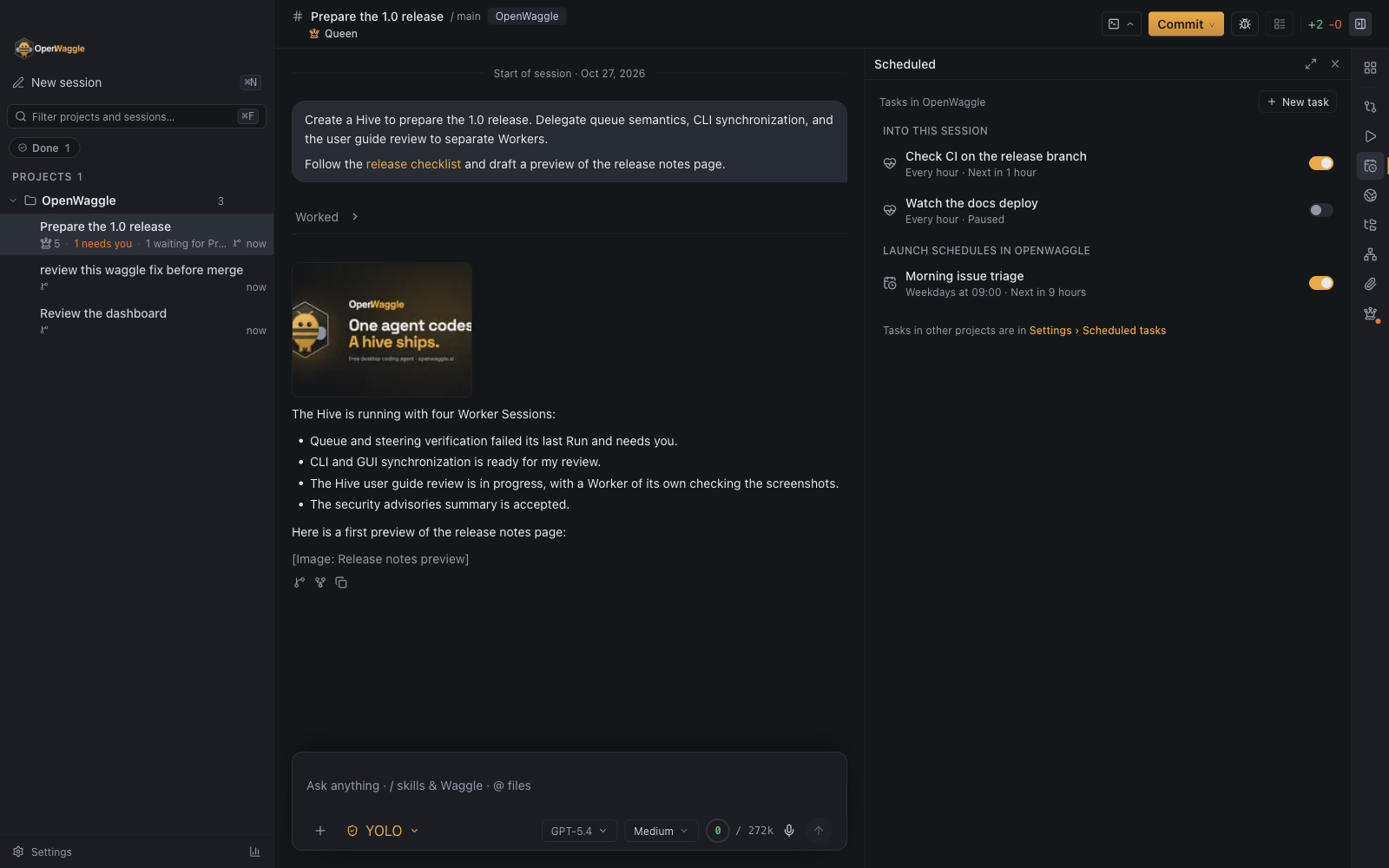
Opening a task shows its settings and run history where you opened it. Edit, or New task, replaces that view with the editor in the same place.
Create a task
Choose New task in the Scheduled panel or in Settings. To add a Heartbeat for one session, choose + in the Scheduled section of its Session Summary. Then fill in the editor:
- Under Prompt, write what the agent should do each time. The task is named after the start of the prompt until you give it a name.
- Under Runs, choose Into a Session for a Heartbeat, or New Session each time for a Launch schedule.
- Under When, pick the schedule and its time zone. The editor shows the next three times the task would fire. For an Every… schedule it also shows the shortest interval allowed: 5 minutes for a Heartbeat, 15 for a Launch schedule.
- For a Heartbeat, describe under Stop when… the outcome after which it should stop, such as “PR #42 is merged and main is green”.
- For a Heartbeat, you can also add a Wake check under Before each run, and set in Pause after idle runs how many idle runs in a row pause it. See Keep Heartbeats cheap.
- Open the collapsed line below to set an end date, a maximum number of runs, and notifications.
A Heartbeat must have a way to finish: a stop condition, an end date, a run limit, or Runs indefinitely. It can also use its own Model and Thinking level for its runs, such as a cheaper model for a routine check. The session keeps its own model for everything else.
You can also ask the agent, for example: “check this PR’s CI every 30 minutes and tell me when it is green”. The agent creates a Heartbeat for its own session with its hive tool, with a stop condition such as “CI is green”. It creates a task only when you ask for recurring work. If it can finish the work in the current turn, it does that instead.
A worker’s agent cannot create tasks. Another agent cannot either when its agent definition leaves out the schedule capabilities, or when an agent or access profile without them created its session. Its hive tool’s help tells it why, and you can create the task yourself. An agent running in OpenWaggle cannot use openwaggle schedules with your access either. The command refuses it and points it to its hive tool.
Agents connected over MCP (openwaggle mcp serve) cannot manage scheduled tasks. Their access ends when the MCP server stops, so a later run would have no access left to check against.
Choose a schedule
In the task editor, pick how often the task repeats:
| Schedule | Example |
|---|---|
| Every… | Every 30 minutes |
| Every day | Every day at 09:00 |
| Weekdays | Monday to Friday at 09:00 |
| On chosen days | Monday and Thursday at 09:00 |
| Custom rule | FREQ=MONTHLY;BYDAY=1MO;BYHOUR=10;BYMINUTE=0, the first Monday of each month at 10:00 |
Times are clock times in the task’s time zone, which is your computer’s zone when you create the task. A 09:00 task stays at 09:00 in that zone when you travel. Intervals count elapsed time. When the clocks go forward, a time inside the skipped hour fires once, just after the gap. When they go back, a repeated time fires only the first time.
Recurrence rules follow RFC 5545, without DTSTART, UNTIL or COUNT. To stop a rule, give the task an end date or a maximum number of runs.
A task that runs hourly or less often fires within 5 minutes either side of its time, so many tasks set for 09:00 do not all reach your provider in the same second. A daily 10:00 task can fire at 09:58:59. Wherever OpenWaggle shows the next run of such a task, it says so: ± up to 5 min in the app, (±5 min) on the command line, and nextRunJitter in the agent’s hive tool. The run history shows the planned time next to the actual one.
Next run, last run and run history show times to the second, with the offset from UTC, such as 2026-10-26 09:58:59 +01:00. The offset tells apart the two runs of an hour that repeats when the clocks go back.
Keep Heartbeats cheap
Every Heartbeat run is a full agent turn in its session, and in a long session each turn costs more. Three things stop a Heartbeat from spending tokens when there is nothing to do.
Give it a way to finish
Every new Heartbeat needs a stop condition, an end date, a run limit, or Runs indefinitely, whether you create it in the app, on the command line, or through the agent’s hive tool. Each run reads the stop condition. Once the condition is met, the agent pauses the Heartbeat and says why. A Heartbeat created before this rule existed counts as running indefinitely, and its details say it has no end.
Add a wake check
A wake check is a shell command that runs before each firing. For example, gh pr checks 42 | grep -i fail || true prints the failing checks, and prints nothing when none fail. Keep the || true. grep exits with 1 when it finds nothing, and any exit code other than 0 starts the run.
The Session Host runs the command in the session’s workspace, the way a project action runs: in your shell, with your access, without the conversation, and without OpenWaggle’s own app variables. It can run for at most 30 seconds, and OpenWaggle keeps up to 16 KiB of its output.
What happens next depends on how the check ends:
- If it exits 0 and prints nothing on standard output, OpenWaggle records the firing as skipped, with Nothing to do. No run starts and no model is called.
- If it prints something, or exits with another code, the run starts and the agent sees what the check printed.
- If it cannot start, times out, is killed, or exits 126 or 127 because the shell cannot run it, OpenWaggle records the firing with The wake check failed and what the check printed on standard error. The run starts anyway, unless you set If the check fails to Skip the firing. A failed check never counts as nothing to do.
Output only on standard error, with exit code 0, does not count as work to do. A skipped firing does not use up the task’s maximum number of runs.
If the Heartbeat’s session uses Ask for Approval, a wake check that someone else set, such as an agent or an access profile, waits for you to approve that exact command. Until you do, the task shows Waiting for you to approve its wake check, with the command and Approve. When the agent sets one through its hive tool, it also asks you in its session. Changing the command asks again. A command you set yourself, in the app or with openwaggle schedules, counts as approved.
Let it pause itself
Each Heartbeat run ends as acted, idle or done. The agent reports this with schedule_outcome. If it reports nothing, the run counts as acted when it used any tool other than a read-only one (reading or searching files, Hive queries, the docs), and as idle otherwise. A shell command always counts as acting.
done pauses the Heartbeat at once. So do 3 idle runs in a row by default. To change the number, from 1 to 20, use Pause after idle runs. A firing the wake check skipped counts as idle. Either way, the task records why, such as auto-paused: 3 idle runs, and OpenWaggle tells you once, with Resume.
Each Heartbeat run knows where it stands: how many times it has run, how many idle runs in a row it has had, its stop condition, end date, run limit and runs left, and the wake check’s output.
When a check does not need the session’s own history, a Launch schedule, which starts a fresh session each time, is often cheaper than a Heartbeat.
Read the run history
Each run says what fired it: Scheduled when the schedule came due, Catch-up when it came due while the Session Host was not running or the computer slept, or Run now when someone chose Run now. One catch-up covers every missed time, and the history says how many. A manual run fires at once, not at a scheduled time, and the task’s Last run line names the trigger too, so you never mistake it for a misfire.
A Heartbeat with a wake check leads with its last check, such as Last check 07:04 · nothing to do · next 07:34, and its Session Summary row says Nothing to do. Each Heartbeat run in the history shows its outcome, and whether the agent reported it or OpenWaggle worked it out.
When a task cannot fire
- If the computer slept or the Session Host was not running, the task runs once when the Session Host is back, marked as a catch-up, not once per missed time.
- If the Heartbeat’s session is busy, because a run is active, messages are queued or a question waits for you, the Heartbeat waits and checks again every minute. It never steers or jumps the queue. If it is still waiting at its next time, OpenWaggle records the earlier firing as skipped.
- If the
picommand line wrote to the Heartbeat’s session last, the Heartbeat waits as if the session were busy. Continue the session in OpenWaggle to let it run. - If a Launch schedule’s previous session is still running, OpenWaggle skips that firing. A task has at most one run in progress.
- A task runs agent work when an agent or a command-line access profile created it, or last changed its prompt, a Launch schedule’s project, its model or another run setting, its stop condition or its wake check, until you change them yourself. A Run now an agent asks for is agent work too. Agent work counts as the agent’s even when it runs as you: if a worker limit it is held to is full, OpenWaggle skips that firing and records it. A Heartbeat on a worker is held to both limits, and a Heartbeat on any other session, or a launch, to Active Workers only. For a task you own, a Run now you choose and its work if you wrote it are never skipped for this. A task a command-line access profile owns runs as that profile, so it can be skipped even when you edit or run it.
- If the Heartbeat’s session was archived, the Heartbeat pauses and asks for your attention. Deleting the session deletes the Heartbeat.
- If someone revoked the access profile that created the task, or it can no longer schedule work, the task stops and asks for your attention.
- If a Launch schedule’s model is gone, or its agent definition no longer works, the task stops and asks for your attention. It never falls back to another model.
What a task is allowed to do
A scheduled task can never do more than the person or agent who created it could do by hand. Each run checks that access again, so revoking a command-line access profile stops that profile’s tasks.
A task an agent created for you runs as you, within what that agent could do when it created the task. A Launch schedule, or a Heartbeat in another session, does not depend on the agent’s session, so you can archive or delete that session and the task keeps running. A Heartbeat in the agent’s own session pauses when you archive that session, and deleting that session deletes it, as for any Heartbeat. If the agent could do less than you, for example because it has to ask for approval, Created by says the task runs with limited access. It keeps those limits until you change its prompt, a Launch schedule’s project, its model or another run setting, its stop condition or its wake check. From then on it runs with your full access. Any other change, such as pausing, resuming, renaming or rescheduling it, keeps the limits.
An agent cannot use a task to get around its own limits:
- A Launch schedule an agent creates must use a project that already has a session or workspace in OpenWaggle.
- An agent that must ask for approval cannot schedule a Heartbeat into a session that can run in YOLO mode.
- An agent limited to one project cannot schedule a Heartbeat into a session that reaches every project.
- When an agent changes the prompt of one of your tasks, the task keeps only what both you and that agent may do.
If a Heartbeat stops because its session can do more than the task’s limits allow, change its prompt, stop condition or wake check yourself, then turn it on again. From then on it runs with your access. A Heartbeat keeps its session, so you cannot move it to another one. For a task owned by a command-line access profile, make the change with that profile. The task then runs with the profile’s access.
A run uses the agent access setting of its target: the session’s for a Heartbeat, the project’s for a Launch schedule. With YOLO (Full Access) it works in its workspace without asking. With Ask for Approval, a request waits for you like any other, and the session shows that it needs your attention. There is no unattended mode that skips approvals.
The agent sees which task started its run, when it fired, and when the task last ran. The conversation never shows the prompt as something you typed.
Run a Launch schedule
Each session a Launch schedule starts gets a new worktree by default, so unattended edits stay out of the checkout you work in. Choose Local checkout to run in the project folder instead. Workspace setup runs only if you turned it on for the project.
Each session is titled with the task’s name and the date, and its row in the sidebar has a calendar icon. Its Session Summary names the task that started it. Turn on Archive finished runs to archive a session once its one run has completed, with nothing queued or waiting for you, as long as nobody sent it another message and it isn’t pinned. It archives only while the task is turned on. Pausing the task leaves its finished sessions in the sidebar.
The agent can also archive its own session when it finds nothing to do, if your prompt asks it to. OpenWaggle waits for the run to complete before it archives the session, so the agent can still write its last message. See When an agent archives its own session for when that archive is skipped. Ask this only of a Launch schedule. A Heartbeat keeps one session, so archiving it pauses the Heartbeat. See When a task cannot fire.
Keep tasks running after a restart
To keep tasks firing after you restart or log out, turn on Background start in Settings > Scheduled tasks. OpenWaggle then starts only the Session Host, with no window, when you log in. It offers this after you create your first task. Background start works in installed builds on macOS (as a LaunchAgent), Windows (as a login item) and Linux (as an autostart entry).
openwaggle status lists the tasks that are turned on and when each fires next, so you can always see why the Session Host is running.
Choose notifications
A Heartbeat tells you only about failures and tasks that need attention, so a quiet monitor stays quiet. A Launch schedule tells you about every run. You can change this for each task. Open on a notification opens the task in the Scheduled panel when you are in its project, and in Settings otherwise. The Scheduled rail icon and the Settings tab show a dot while a task needs attention.
Manage tasks from the command line
openwaggle schedules does everything the app does. To list your tasks:
openwaggle schedules listTo watch CI every 30 minutes in a session until it is green, replace SESSION_ID with the session’s ID or link:
openwaggle schedules create heartbeat SESSION_ID --name "Watch CI" --every 30m --stop-when "CI is green" --wake-if "gh pr checks 42 | grep -i fail || true" "Fix the failing checks."To start a triage session in the current project every weekday at 09:00, with the prompt in triage.md:
openwaggle schedules create launch . --name "Morning triage" --daily 09:00 --weekdays weekdays --prompt-file triage.mdopenwaggle schedules approve-wake-check <task-id> approves the command a Heartbeat’s wake check runs now, and prints it. An access profile cannot approve one. openwaggle schedules run <task-id> runs a task now, like Run now.
openwaggle schedules export prints tasks as JSON, and openwaggle schedules import creates them again under your identity. Tasks live only in the Session Host. No file creates one, and a project cannot share one. An access profile needs the schedules:read capability to list tasks and schedules:manage to change them. See Hive CLI for --profile. Every command and option, and the export format, are in the scheduled tasks reference.